Table of Contents
Setting up 2FA - sellercentral.amazon.com
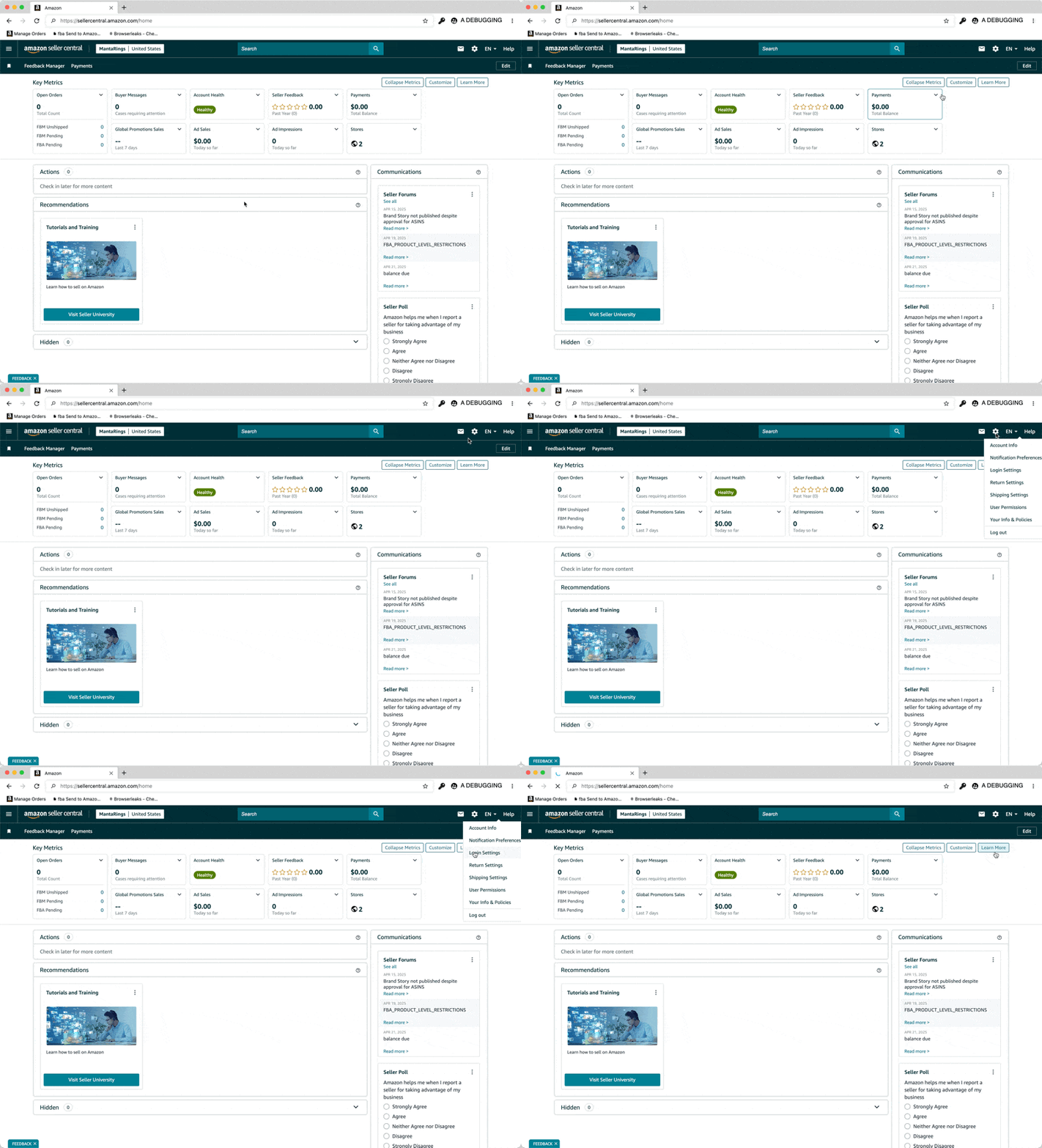
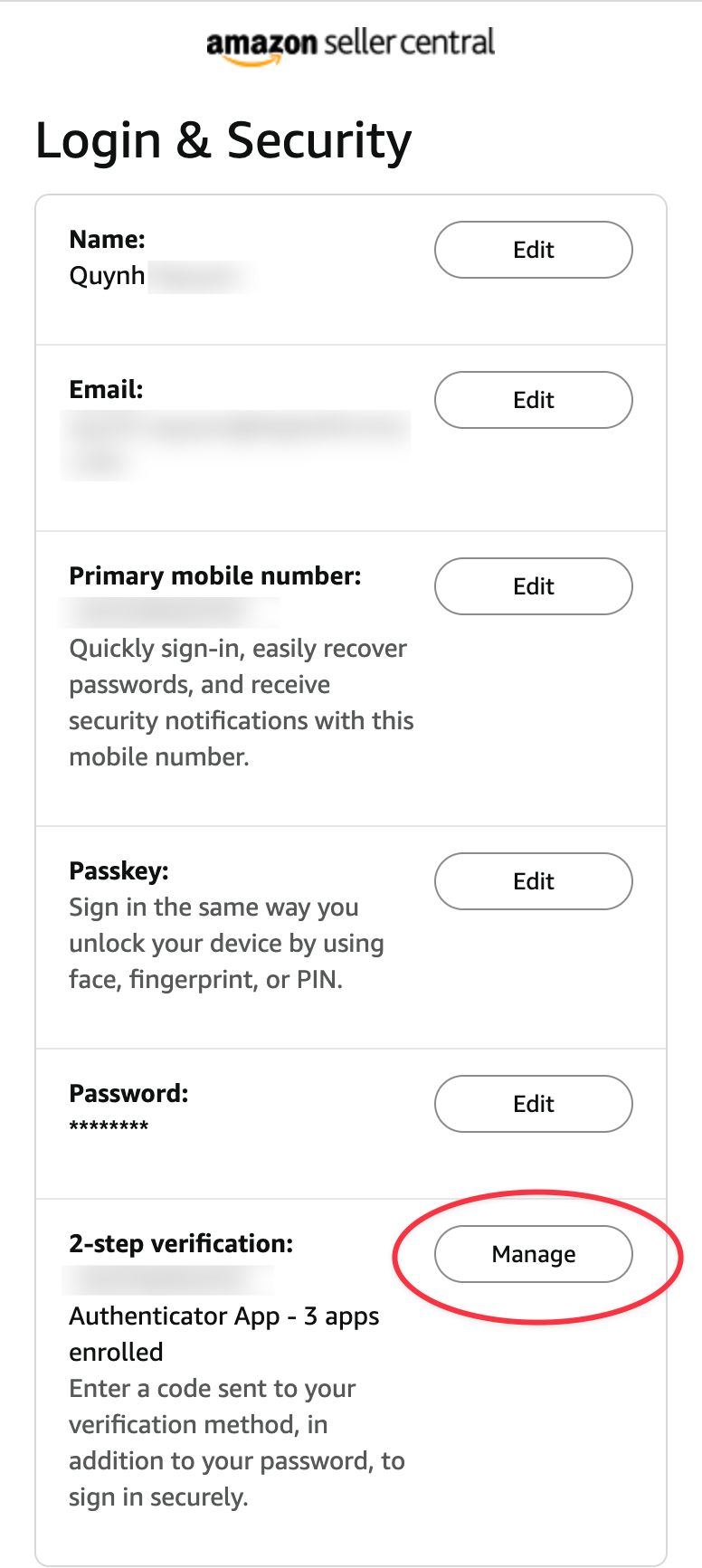
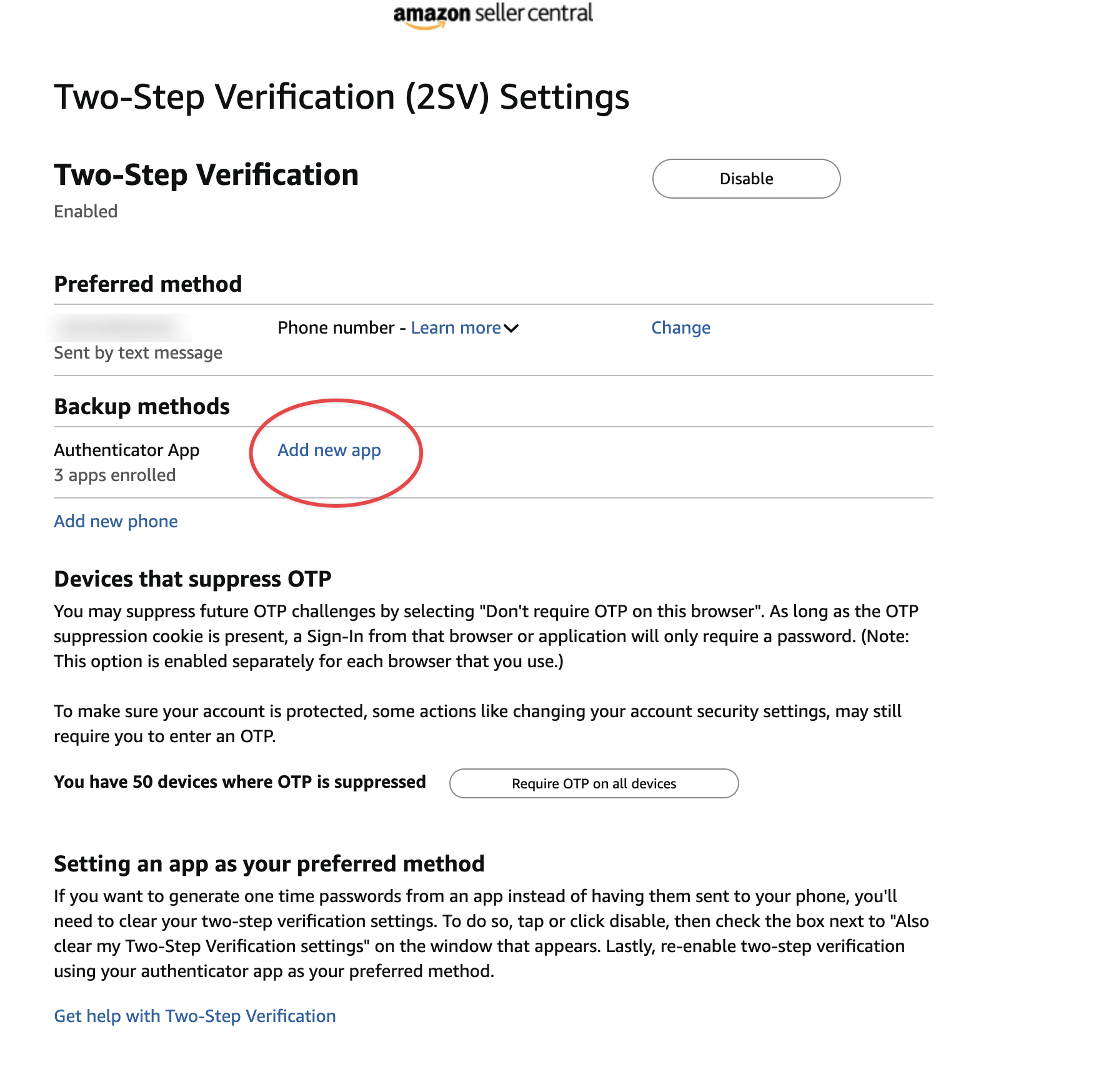
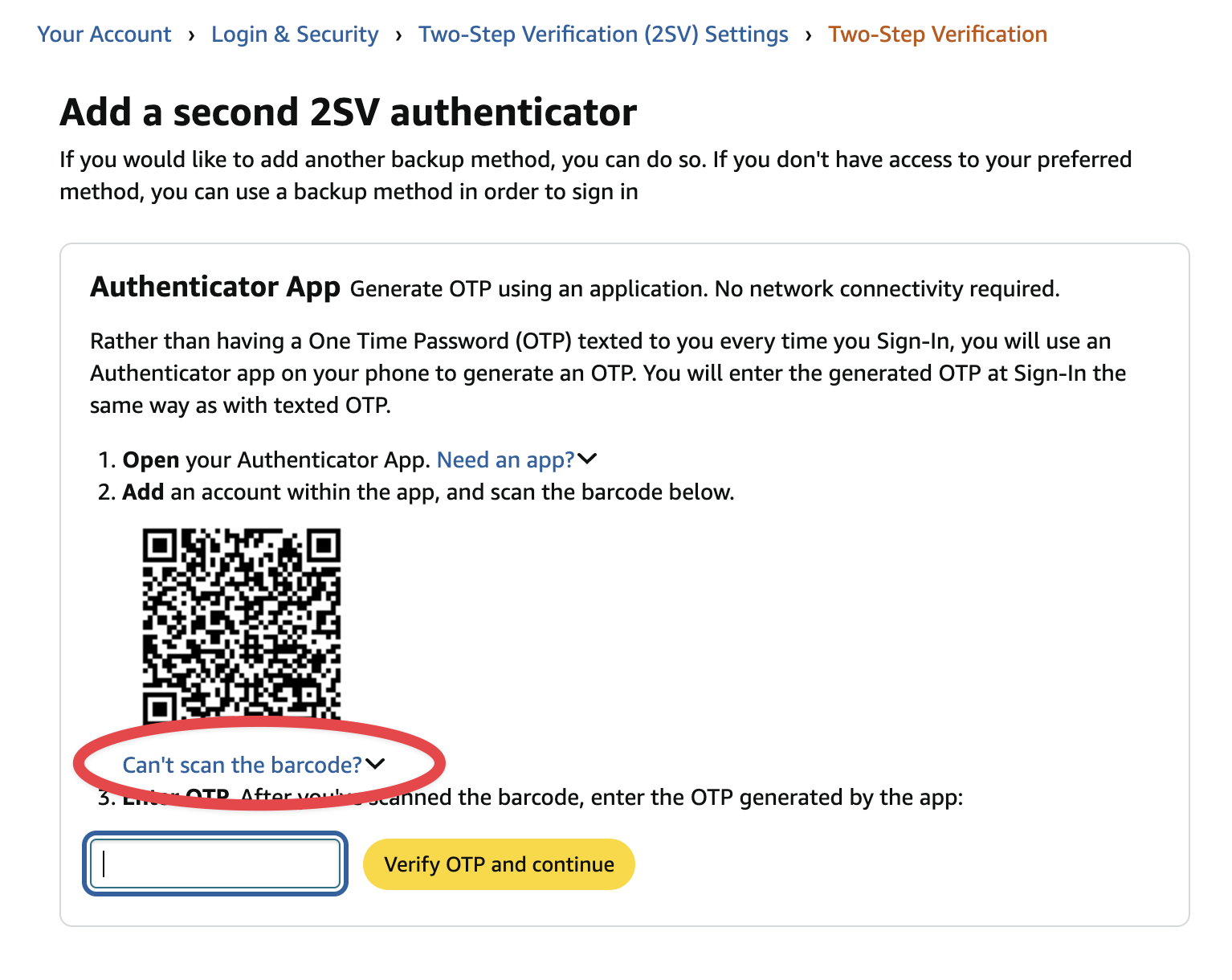
How to set up 2fa for amazon sellercentralIn order to set up 2FA in MirageID for sellercentral.amazon.com follow these steps: Go to your login settings:Under 2-Step Verification select "Manage":Then select "Add New App":On the resulting page, click on "Can't scan the barcode?":Copy the Secret Key from the popup:Click on the "Key" icon on the top of the MirageID Browser window:Click on the "down arrow" to the right of the password manager entry this token is for:Click on "Set up 2Fa":Paste in the Secret Key that you copied previously and click Save:Then copy the resulting 2FA Token:And paste it into the field, click "Verify OTP and continue"That's it! You are all set to use the 2FA support in MirageID.
Table of Contents
In order to set up 2FA in MirageID for sellercentral.amazon.com follow these steps:
- Under 2-Step Verification select "Manage":
- Then select "Add New App":
- On the resulting page, click on "Can't scan the barcode?":
- Copy the Secret Key from the popup:
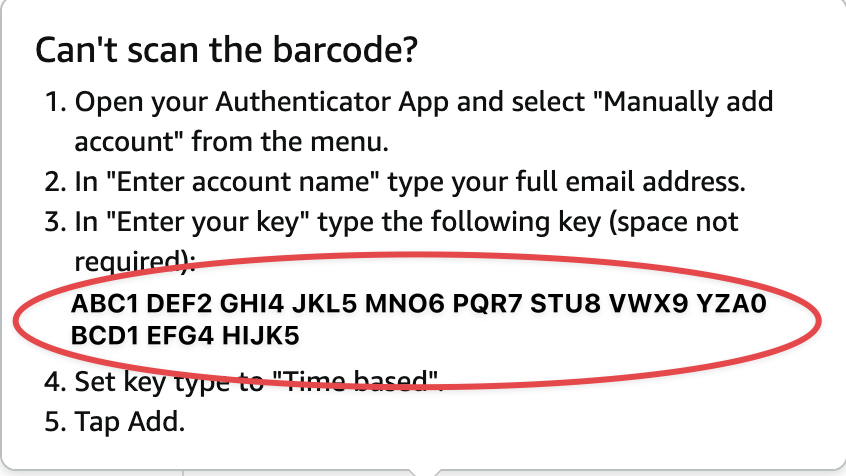
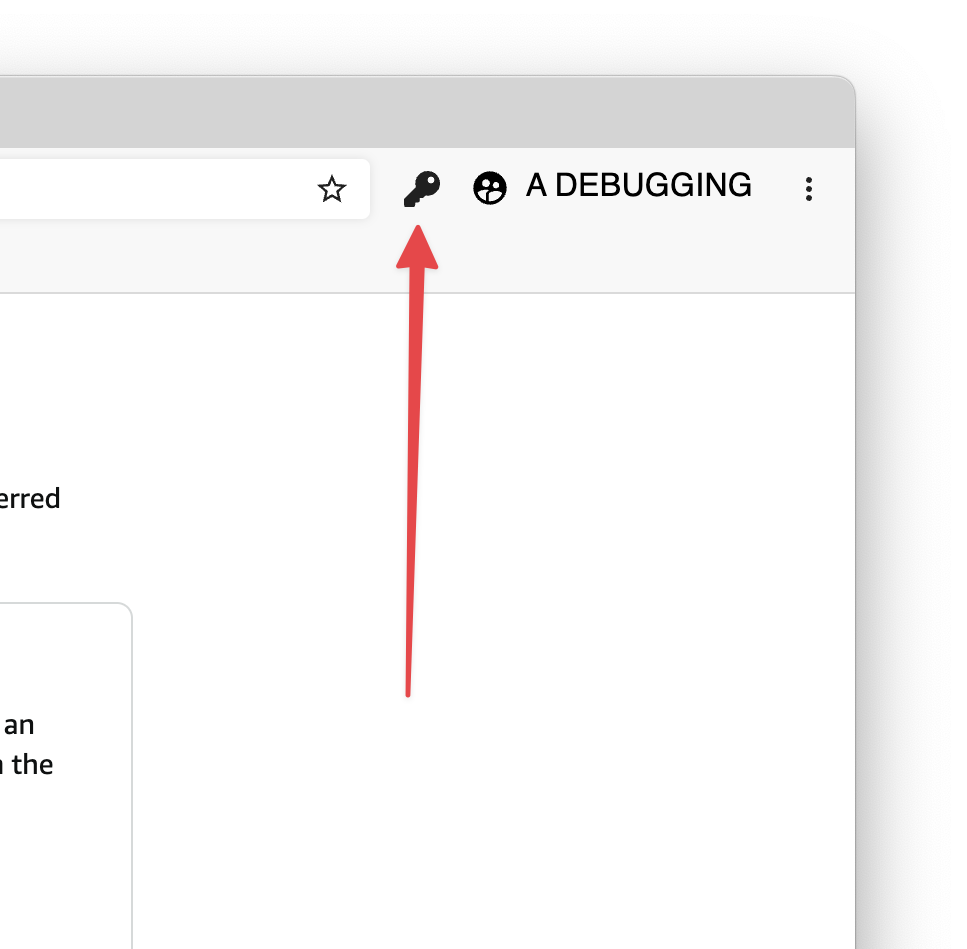
- Click on the "Key" icon on the top of the MirageID Browser window:
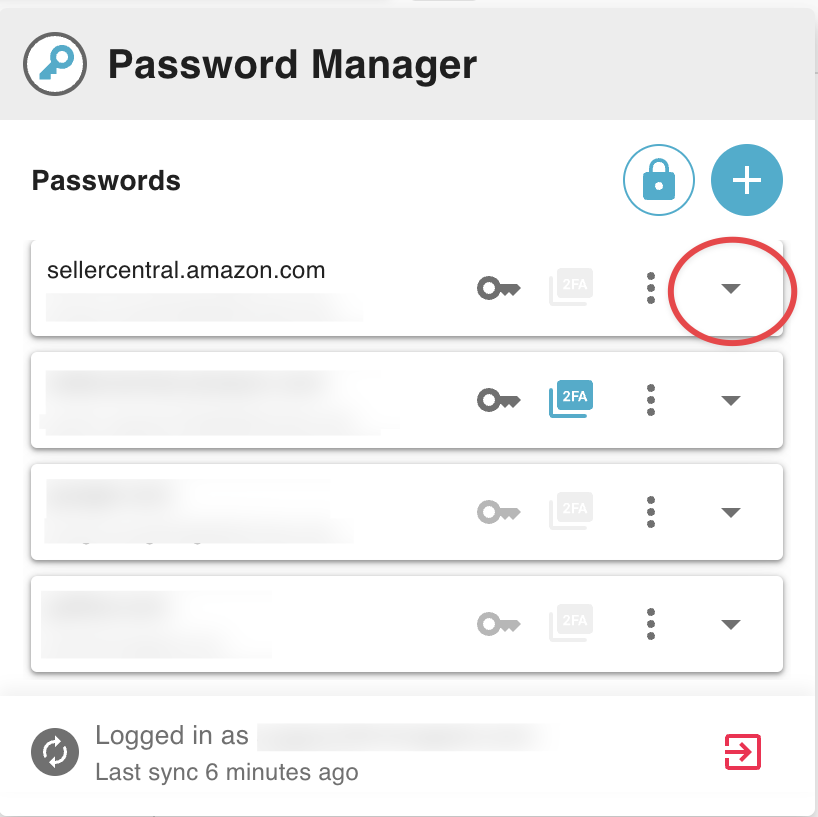
- Click on the "down arrow" to the right of the password manager entry this token is for:
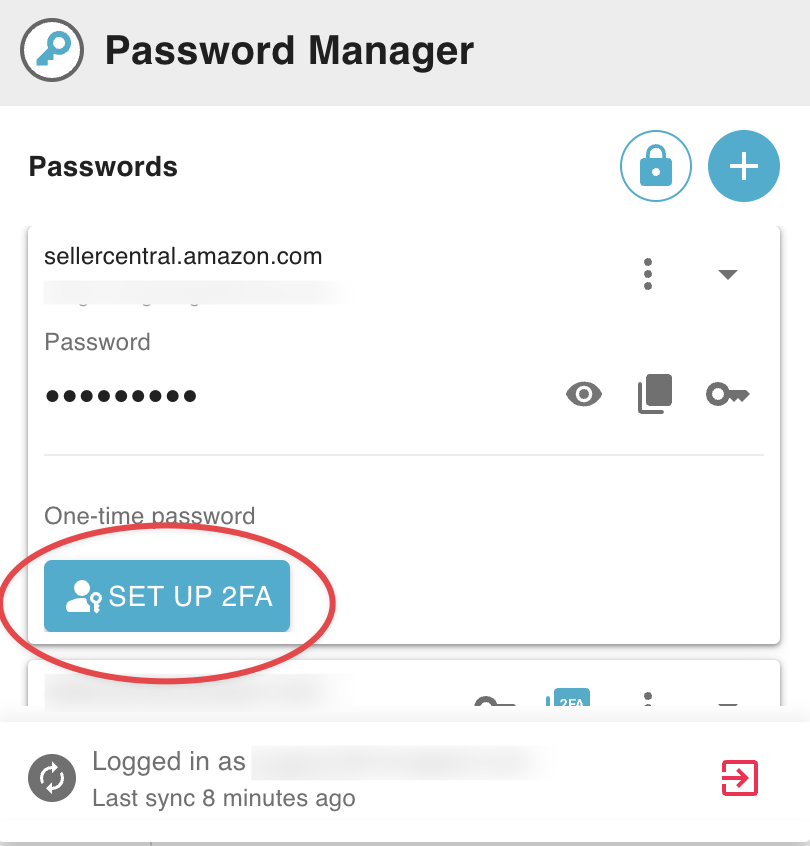
- Click on "Set up 2Fa":
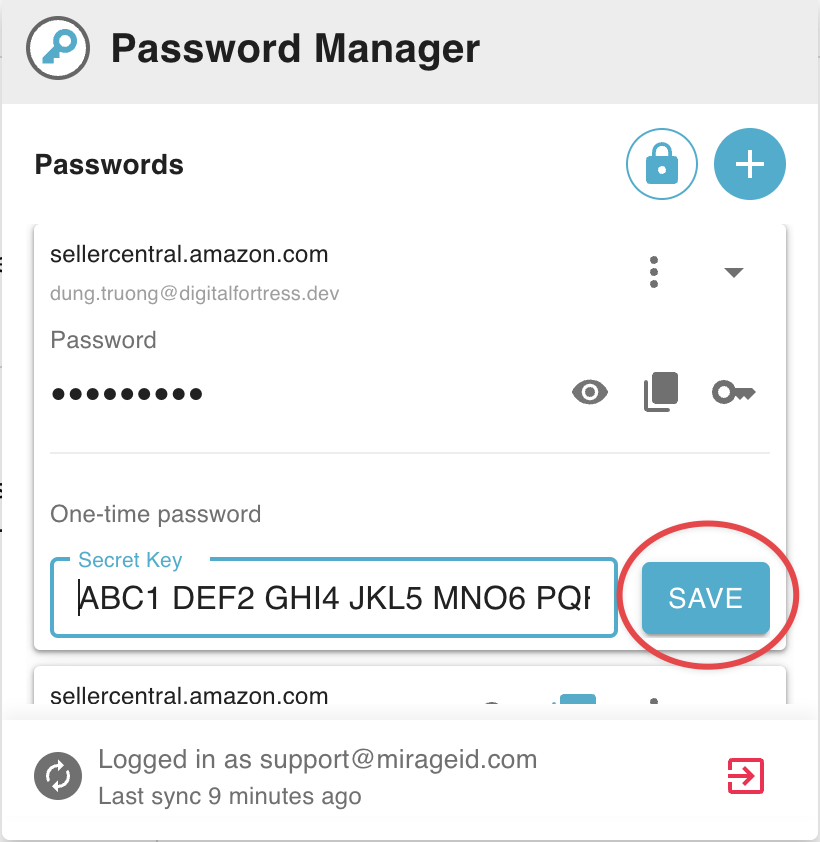
- Paste in the Secret Key that you copied previously and click Save:
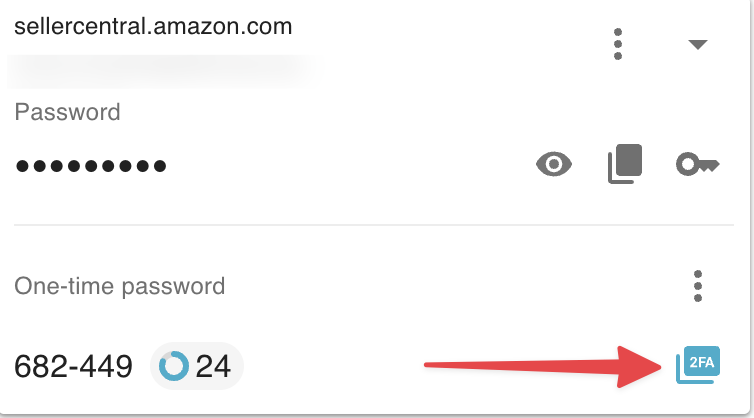
- Then copy the resulting 2FA Token:
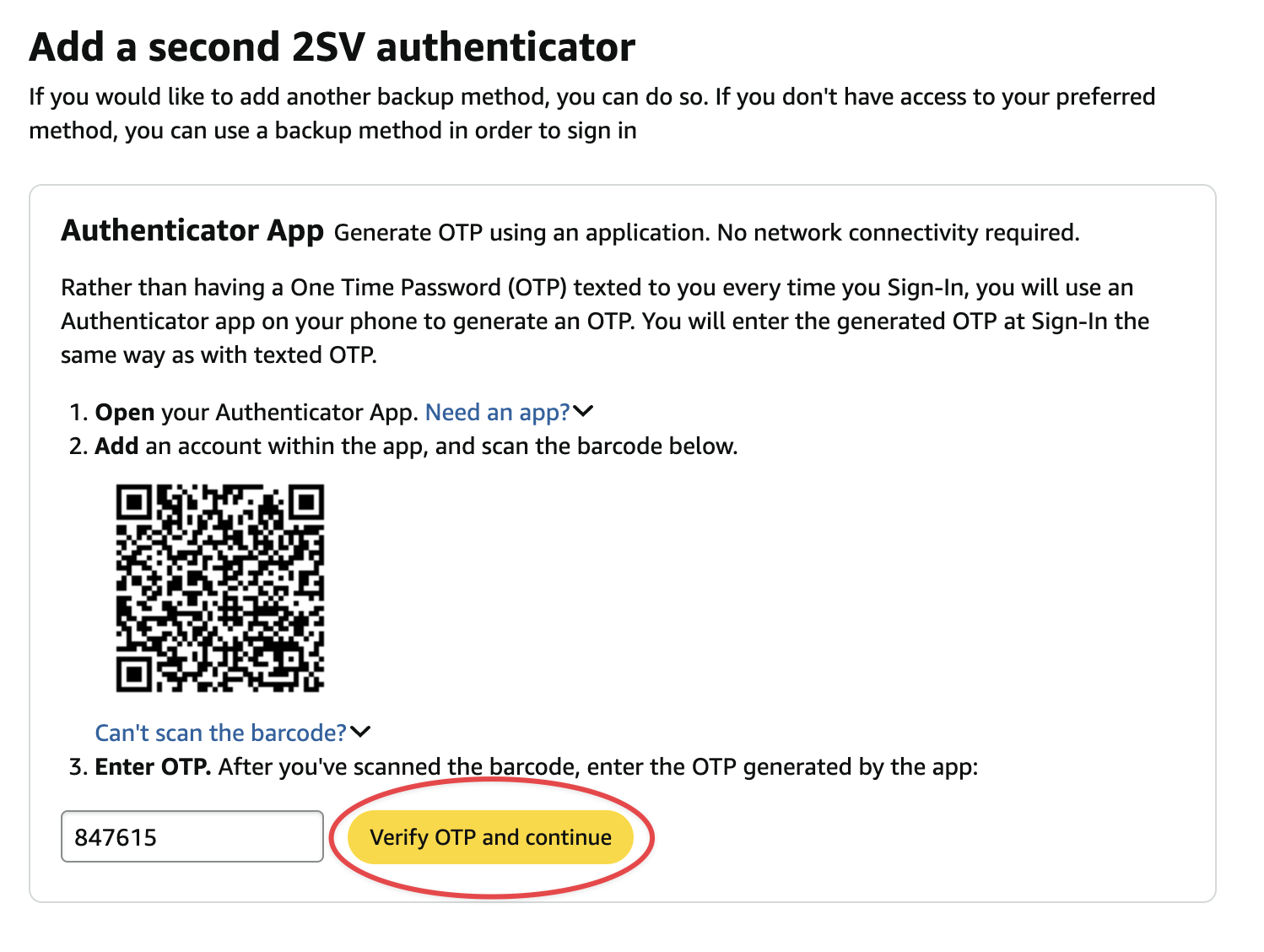
- And paste it into the field, click "Verify OTP and continue"
- That's it! You are all set to use the 2FA support in MirageID.
How did we do?
Creating Identities
Password Manager