Table of Contents
Using Identities
How to use Identities in MirageIDOnce you have created an Identity in MirageID (for instructions see this article), you are all ready to use that Identity. While creating Identities can be done from any web browser by accessing the account manager website, using an Identity can only be done by downloading our dedicated MirageID web browser to your computer. For instructions on how to install the browser, see this article. Once you have installed the browser, continue with the instructions below. To use an Identity that you have createdOpen the MirageID Web Browser and Log in using your MirageID login email and passwordYou will then see a list of Identities that you have createdSelect the Open Button for the Identity you want to work inYou will then see the main MirageID Browser window. All browsing that you do in an Identity in the MirageID Web Browser is isolated from all traffic in other Identities and in regular Web Browsers on the same computer.
Table of Contents
Once you have created an Identity in MirageID (for instructions see this article), you are all ready to use that Identity.
While creating Identities can be done from any web browser by accessing the account manager website, using an Identity can only be done by downloading our dedicated MirageID web browser to your computer. For instructions on how to install the browser, see this article. Once you have installed the browser, continue with the instructions below.
To use an Identity that you have created:
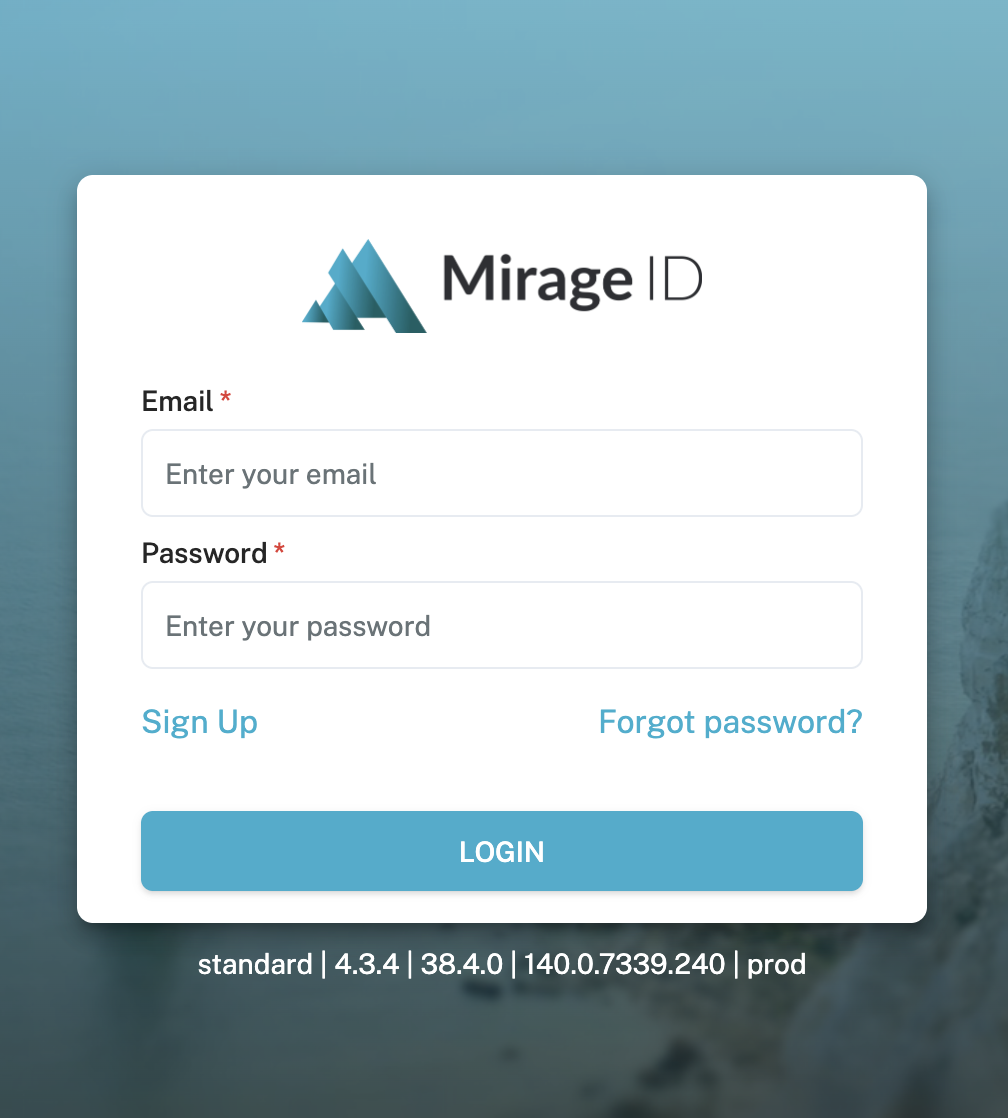
- Open the MirageID Web Browser and Log in using your MirageID login email and password
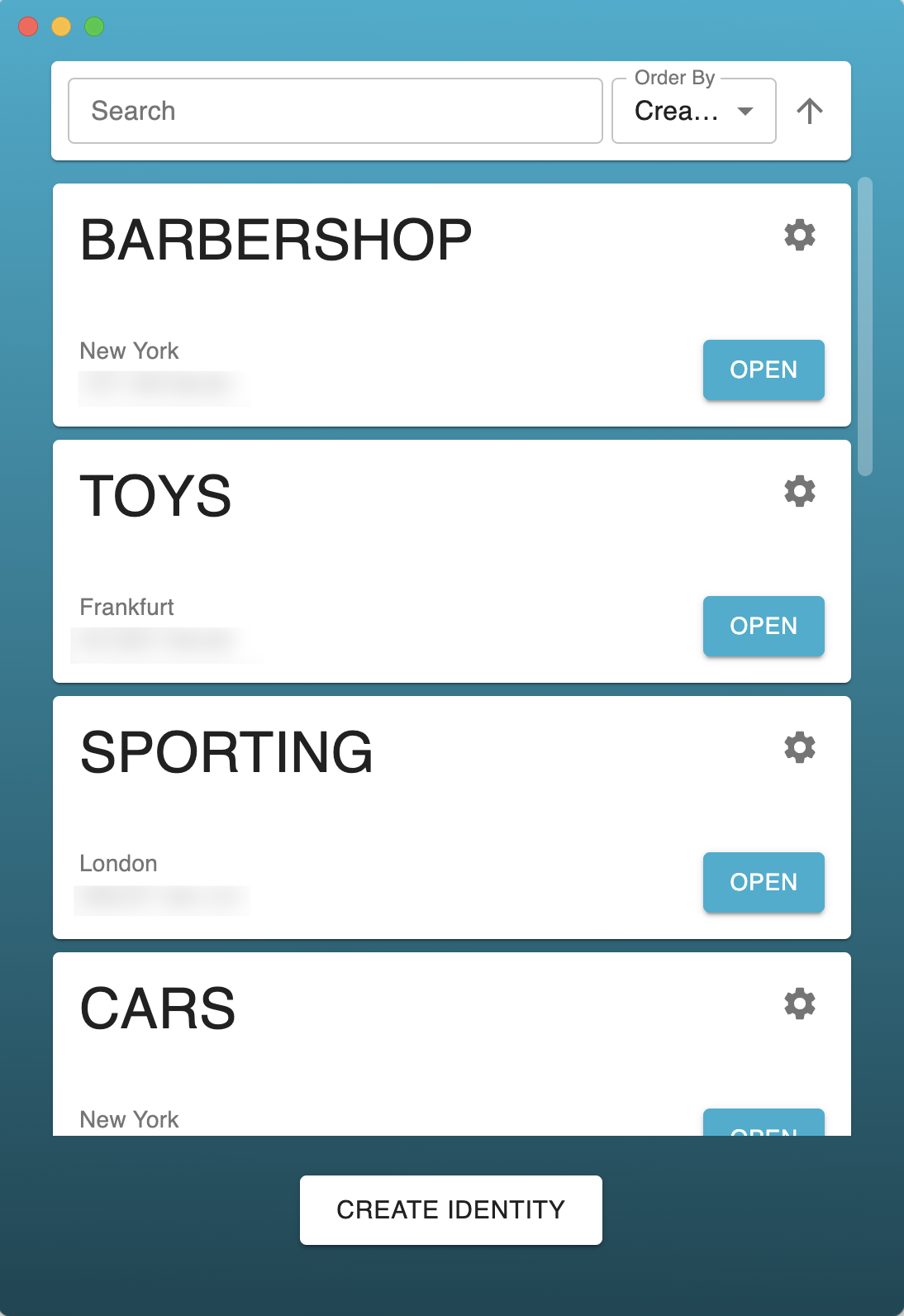
- You will then see a list of Identities that you have created
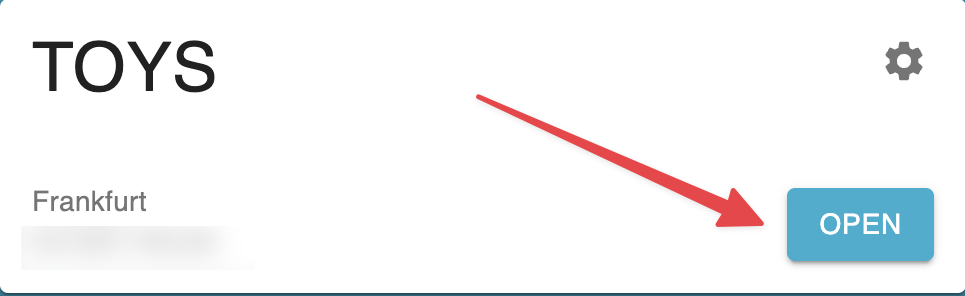
- Select the Open Button for the Identity you want to work in
- You will then see the main MirageID Browser window.
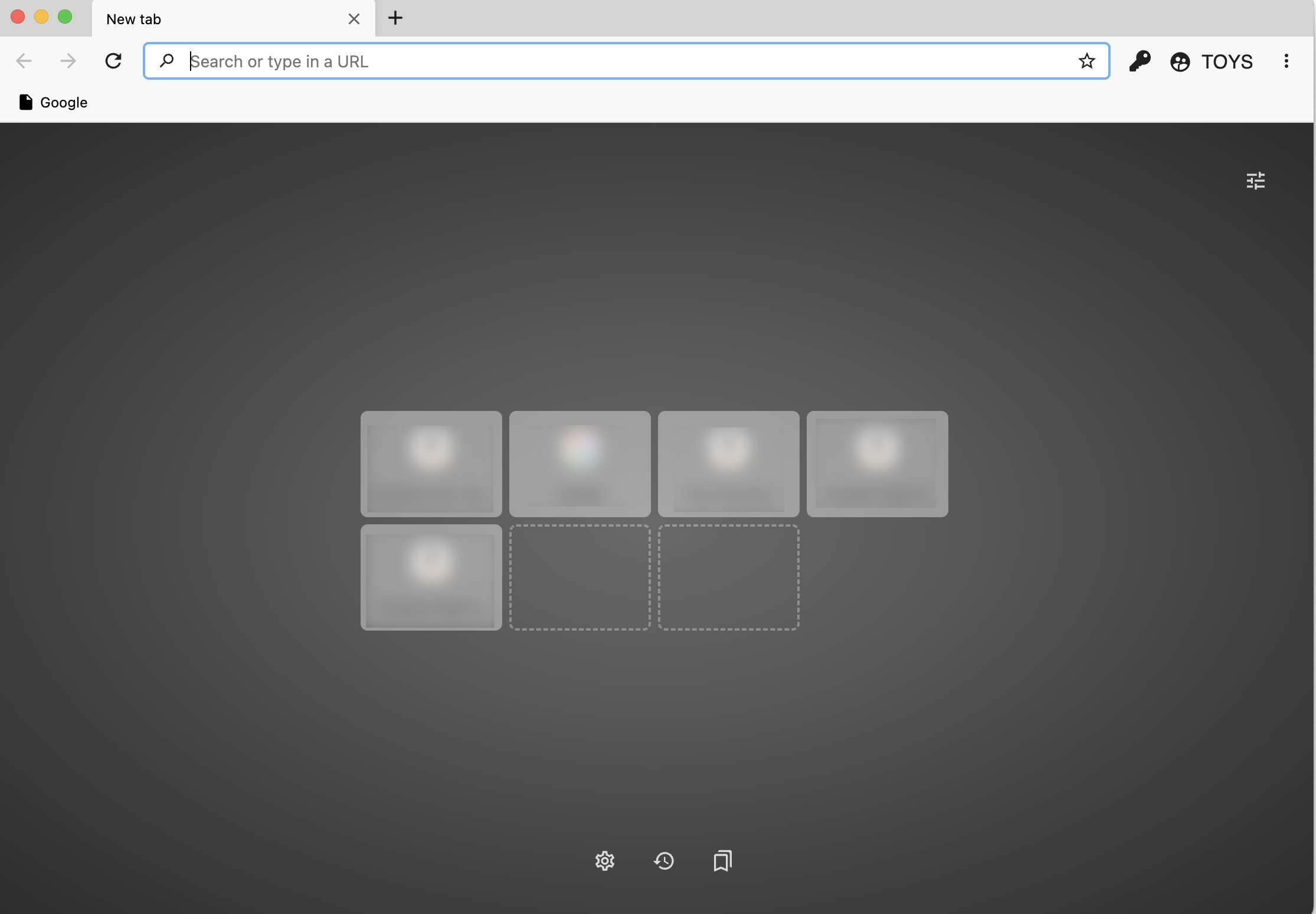
All browsing that you do in an Identity in the MirageID Web Browser is isolated from all traffic in other Identities and in regular Web Browsers on the same computer.
How did we do?
Password Manager
Clear Cookies