Inviting Child Users to MirageID
Mirage ID offers great tools that allow you to invite additional users to your Mirage ID account, as well as choose what access to give your users. Here is how to invite a child user onto your Mirage…

Updated
by Eliora Konar
Mirage ID offers great tools that allow you to invite additional users to your Mirage ID account, as well as choose what access to give your users. Here is how to invite a child user onto your Mirage ID account.
- First, open https://account.mirageid.com on any browser, and sign in.
- Then, navigate over to “Users”
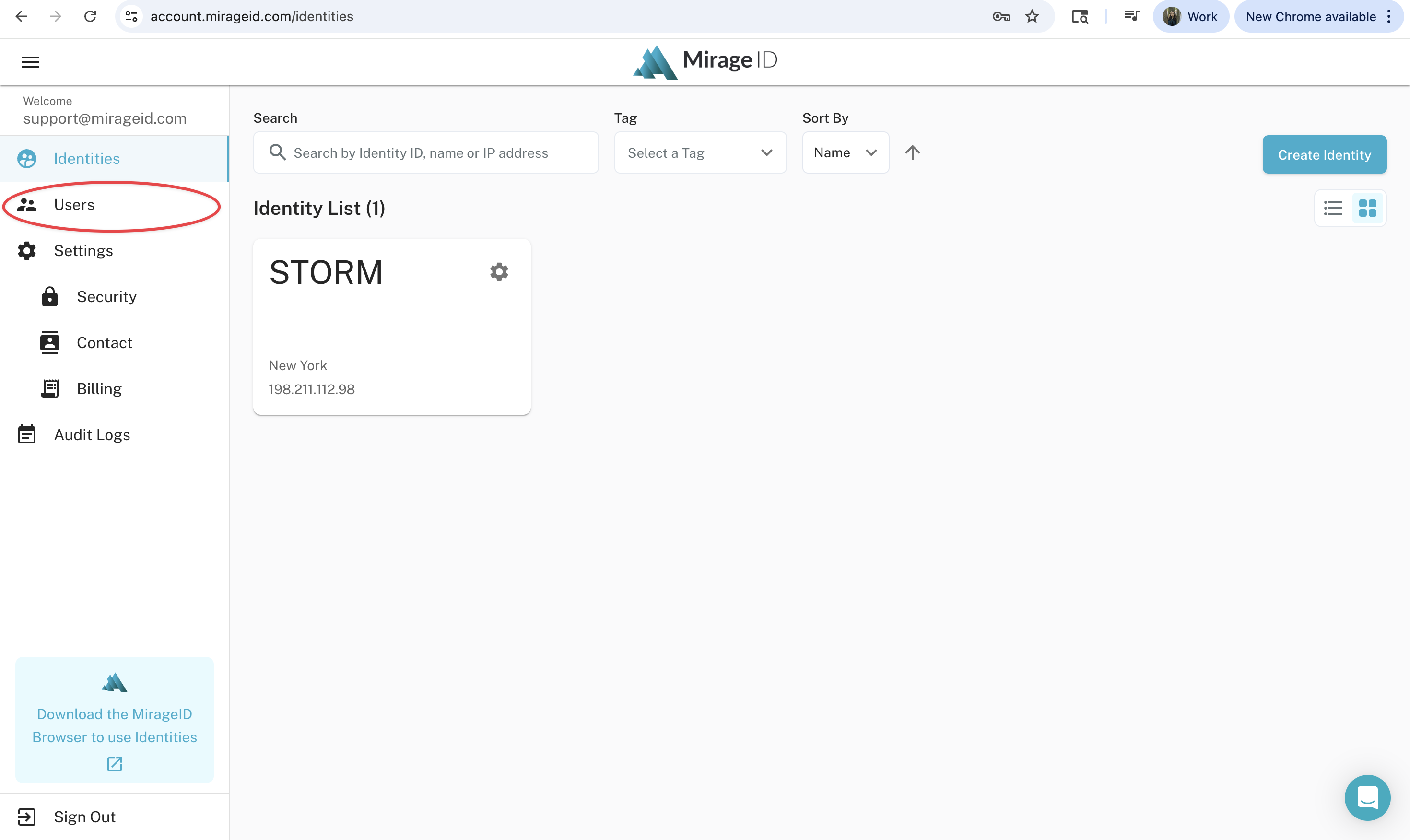
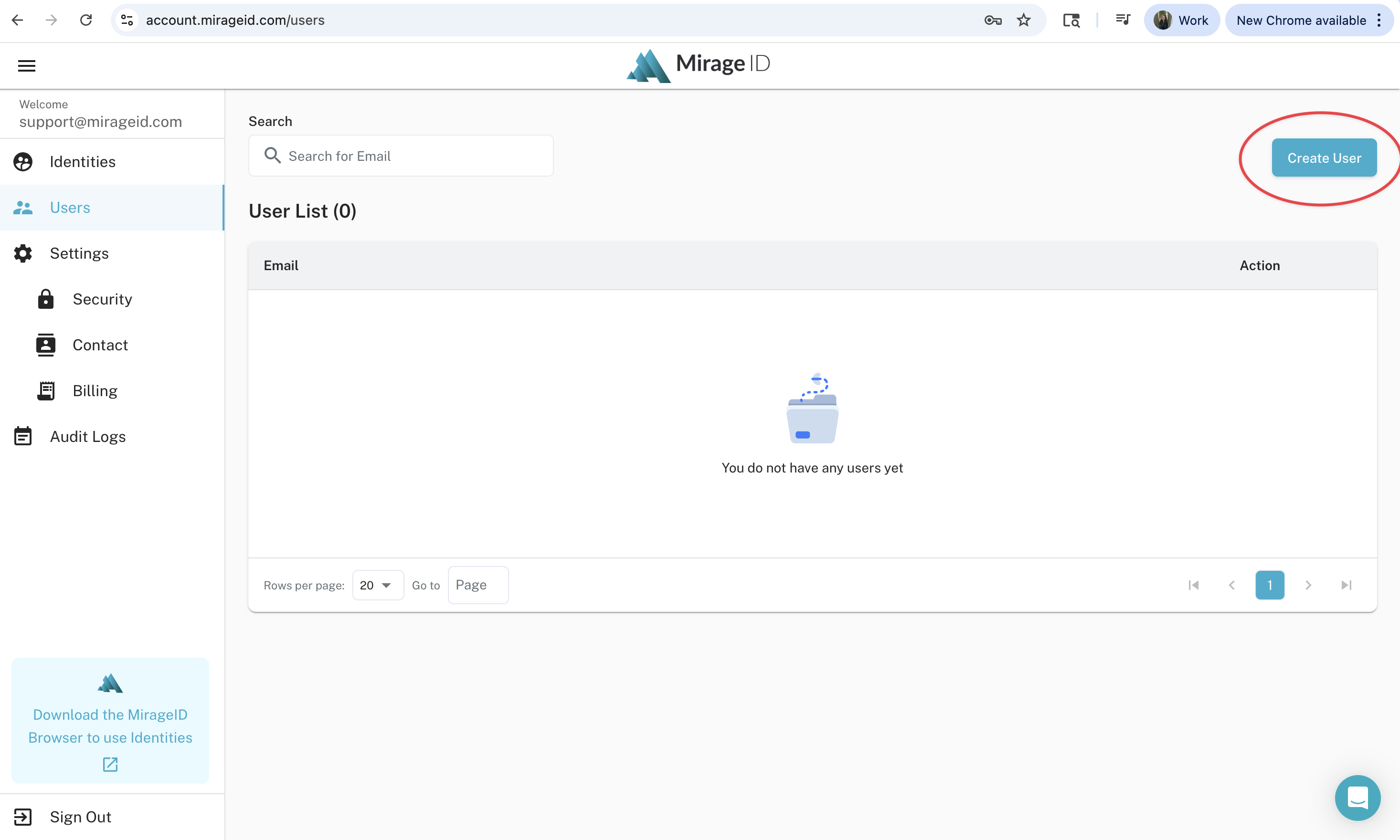
- Next, select “Create User”
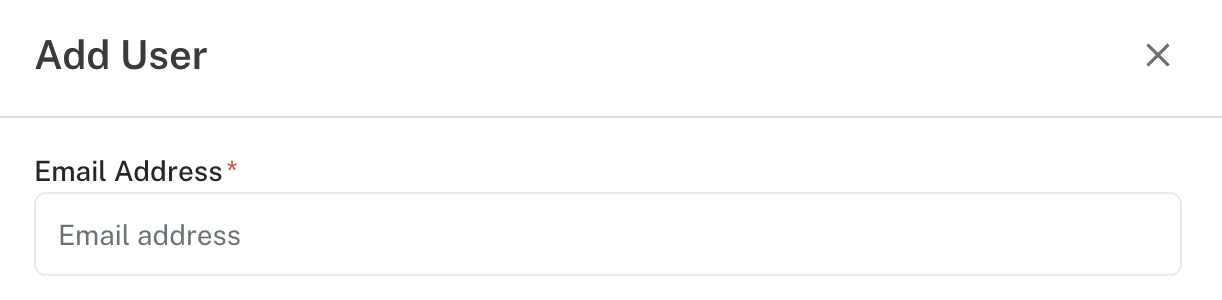
- Add the email address of the user you would like to add. You can also edit their permissions before inviting them, such as what Identities they can open, what passwords they can access, and what content permissions they can use. Below is a comprehensive list of these configurations.
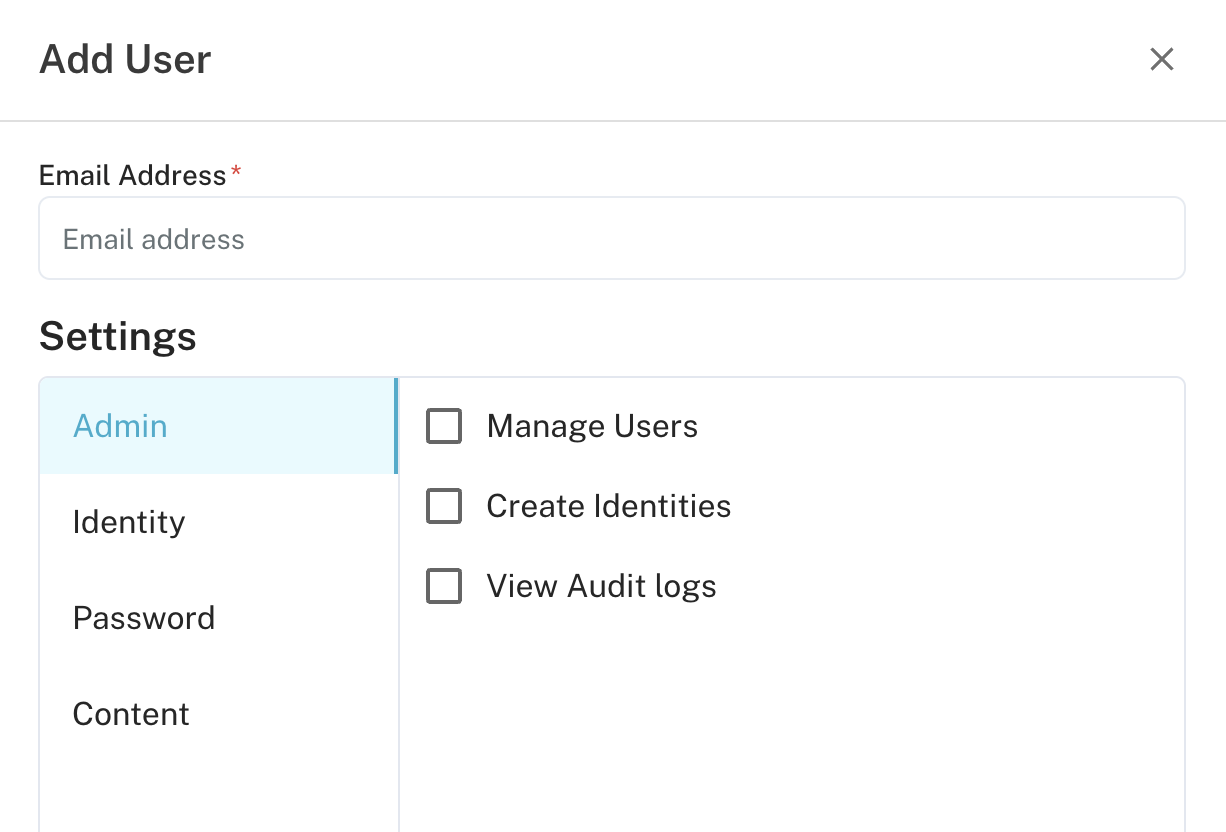
User Settings
________________________________________________________
- Admin - These settings include options to allow or block your user from editing users permissions, creating identities, or viewing Audit logs.
________________________________________________________
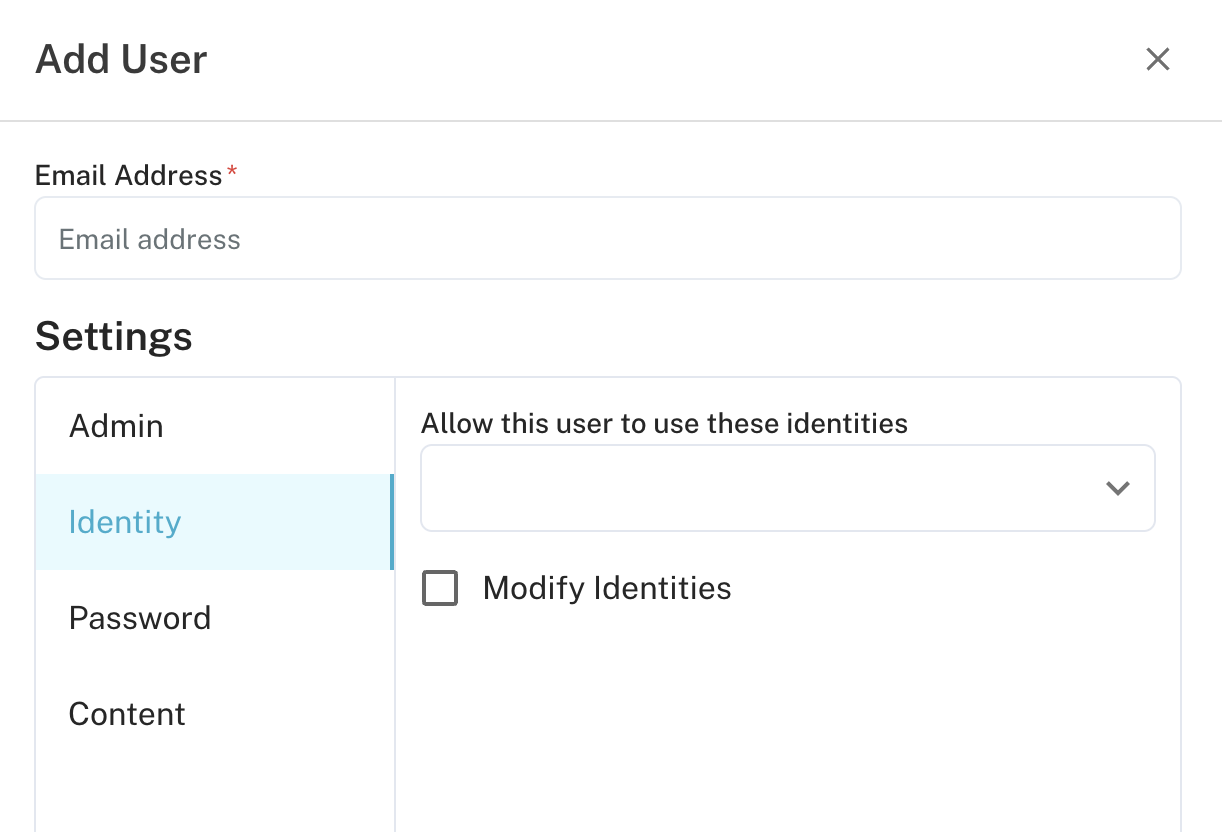
- Identity - These settings allow you to choose which Identities your user can access, as well as whether or not they can edit the Identity's settings.
________________________________________________________
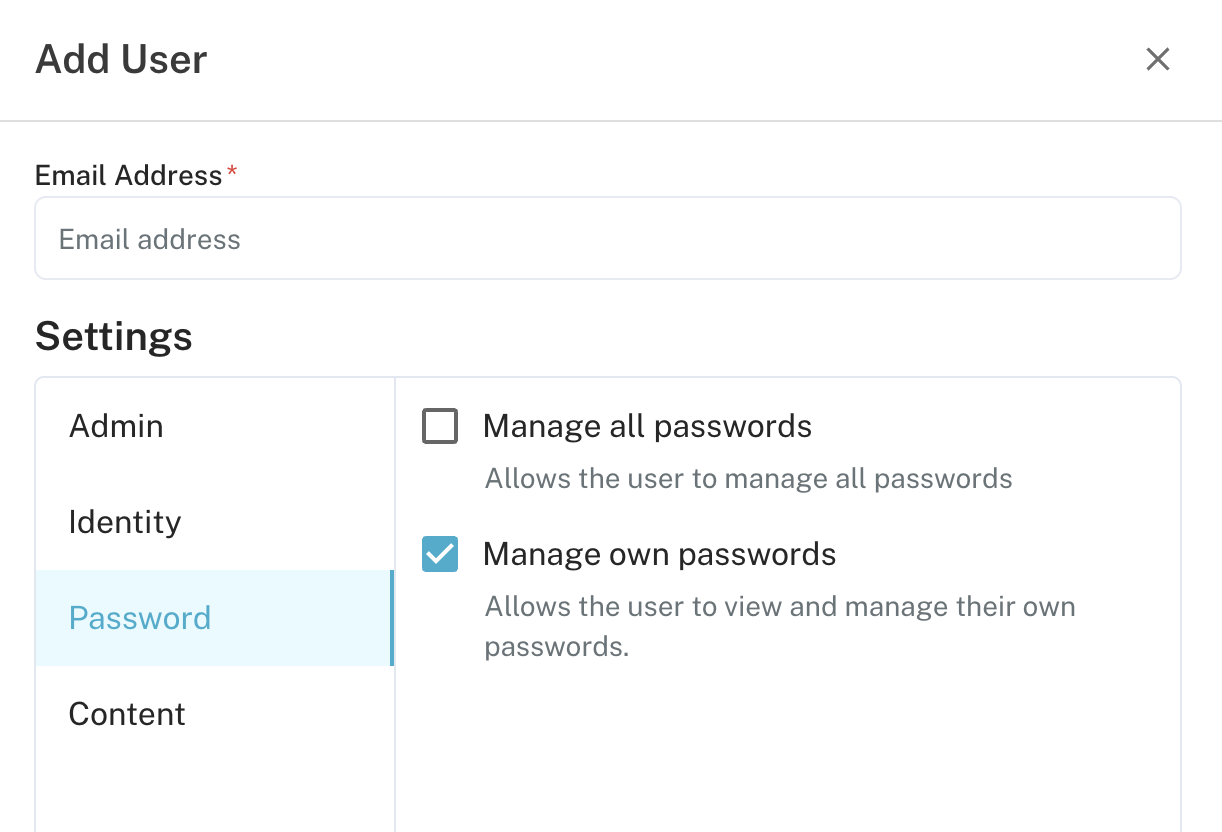
- Password - These settings allow you to choose whether or not your user can view all passwords saved in your password manager, or only the ones that apply to them. For more information on how to configure Identities so that you can assign users specific passwords, see the article Password Manager.
________________________________________________________
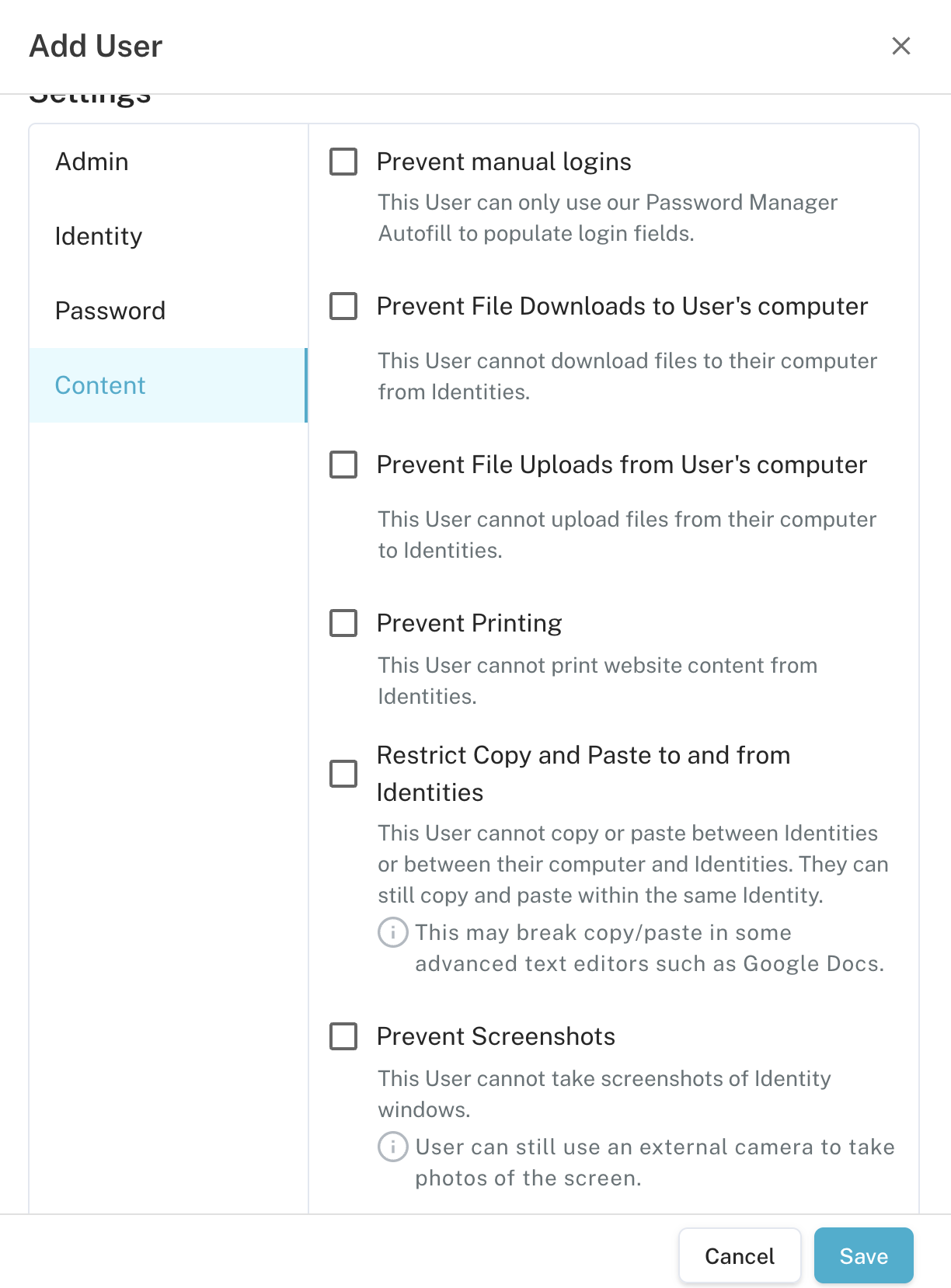
- Content - These settings allow you to control how your user interacts with content on your Identities. For example, preventing manual logins, blocking uploading and/or downloading of files, and preventing printing. More extensive content settings are coming soon!
________________________________________________________
- Once you have set up your User as you would like, click “Save.” The user will receive an email inviting them to your Mirage ID account.
You’re all set!
How did we do?
Installing the MirageID Web Browser