Table of Contents
Using the MirageID Browser with the Gentech Web Filter
How to enable and use the MirageID browser with the Gentech web filter MirageID support is not able to grant access to websites blocked by 3rd-party filters. Please use the MirageID in-browser tools to request access to a blocked site, or contact your Filter company directly.This article assumes you have installed the version of MirageID that is compatible with the Gentech web filter. If you have not yet done that please follow the instructions here. In order to use an Identity with the Gentech-compatible MirageID Browser, you will first need to enable the Gentech whitelist for that Identity: Navigate to account.mirageid.com in any web browser, and click the ⚙️ Icon on the Identity card for the Identity you want to enableClick on the "Show Advanced options" dropdownSelect the "Whitelist filters" option:Then Check the "Gentech Filter" box:In the prompt, enter your Gentech user name and password and click Submit:Click save at the bottom of the Identity cardThe Gentech Whitelist will automatically populate with a set of websites provided by GentechNOTE: This list is not directly editable from within MirageID. Please see below for how to add items to this whitelist. The Gentech whitelist is not directly editable by MirageID users. Instead, you will need to request an addition from Gentech. This can be done from within the MirageID web browser:In the MirageID web browser, navigate to a site that is blockedClick the "Request access..." Button at the bottomFrom here there are two paths depending on your MirageID access level:If you are the administrator user on the MirageID account: a request will be sent to Gentech to allow that website, and you will receive a confirmation email when the site has been allowed.If you are a child user on the MirageID account: An email will be sent to the administrator of your account.If the administrator approves this request (clicks the approve button), a request will be sent to Gentech to allow that website. You will receive a confirmation email when the site has been allowed.
Table of Contents
MirageID support is not able to grant access to websites blocked by 3rd-party filters. Please use the MirageID in-browser tools to request access to a blocked site, or contact your Filter company directly.
This article assumes you have installed the version of MirageID that is compatible with the Gentech web filter. If you have not yet done that please follow the instructions here.
Enabling an Identity for Use with the Gentech compatible version of MirageID
In order to use an Identity with the Gentech-compatible MirageID Browser, you will first need to enable the Gentech whitelist for that Identity:
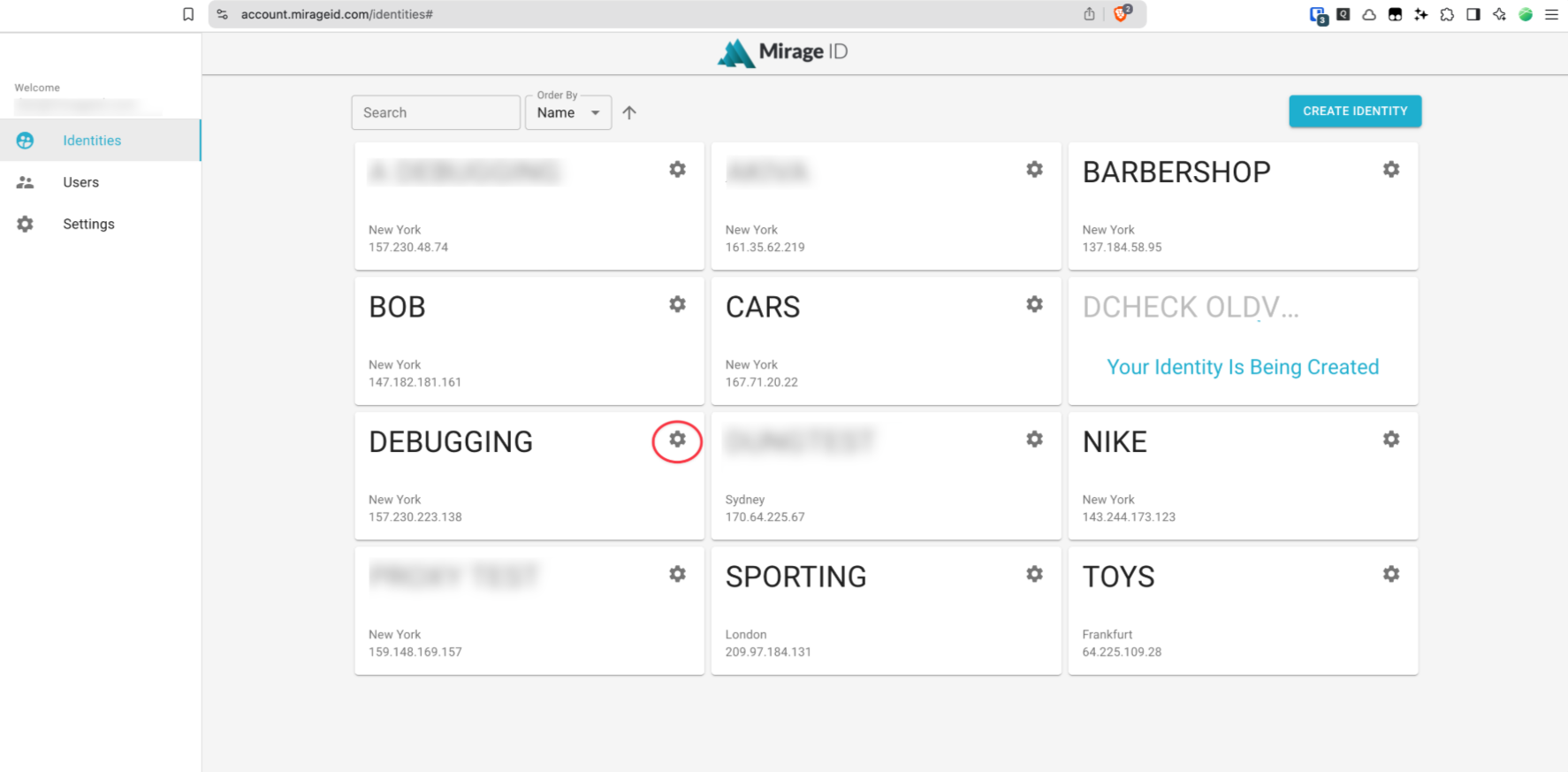
- Navigate to account.mirageid.com in any web browser, and click the ⚙️ Icon on the Identity card for the Identity you want to enable
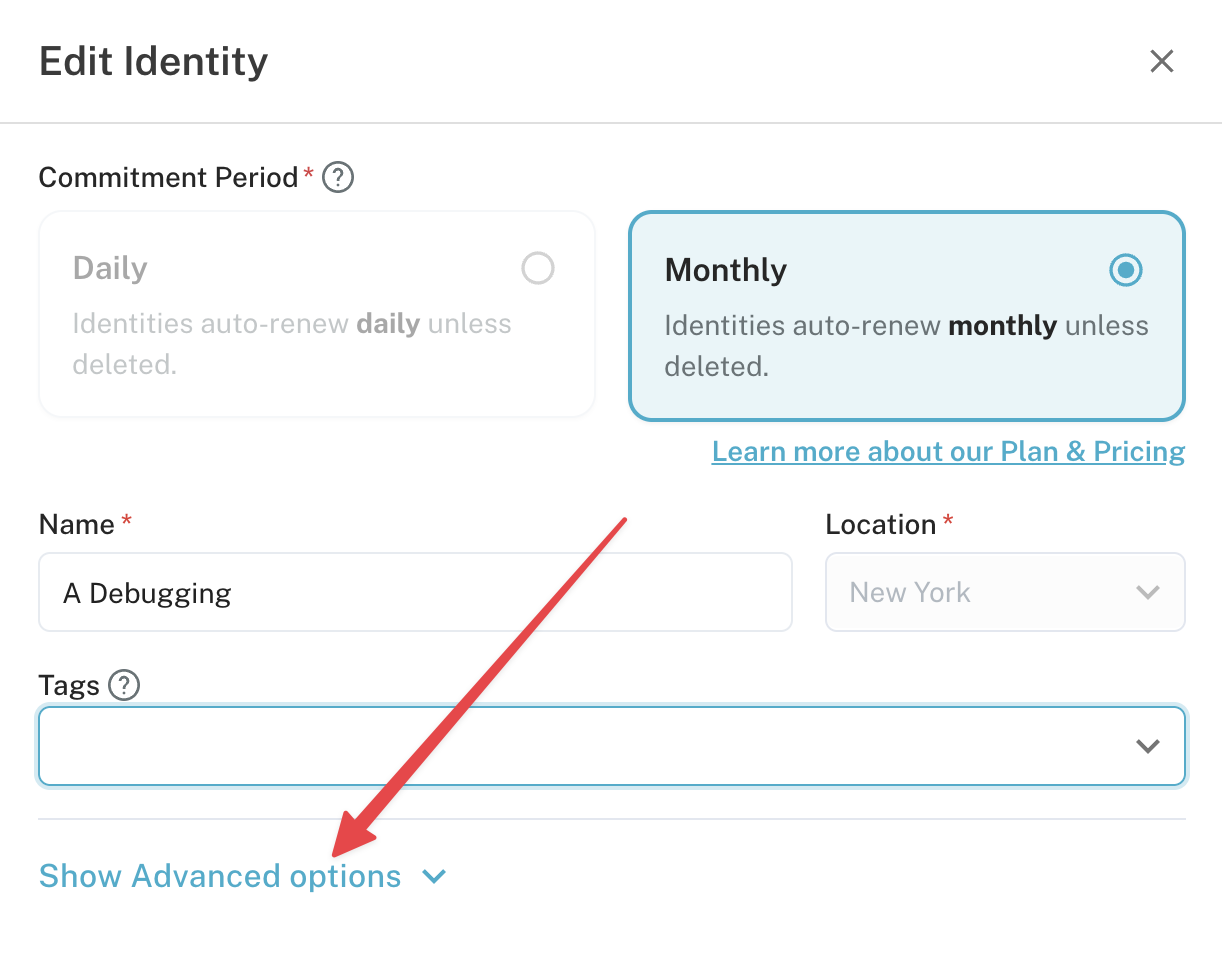
- Click on the "Show Advanced options" dropdown
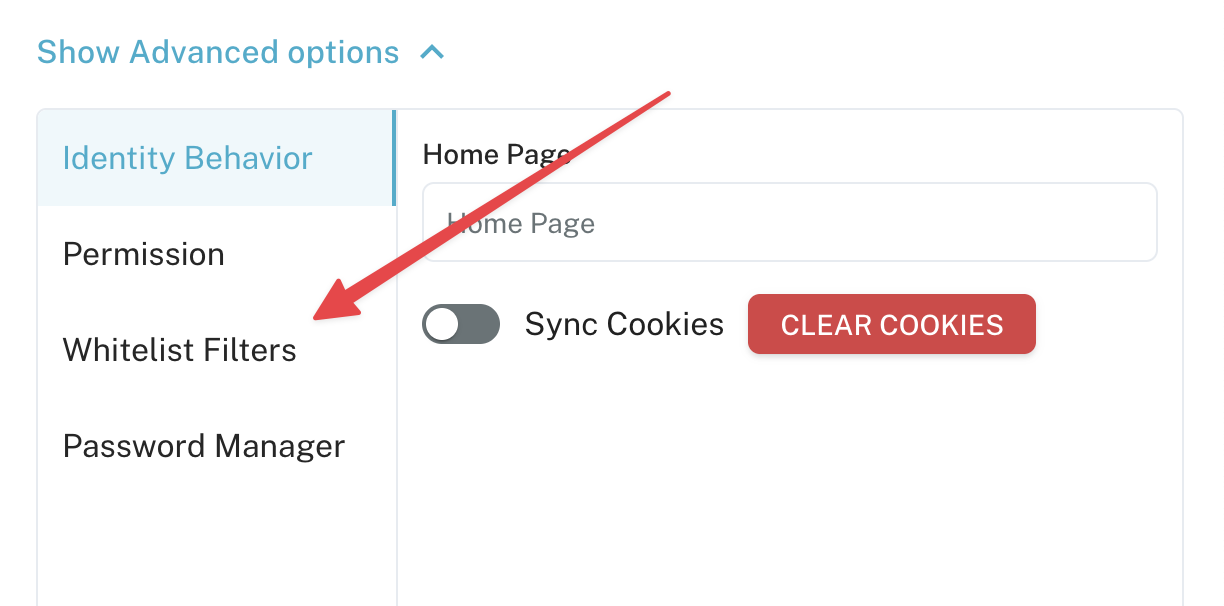
- Select the "Whitelist filters" option:
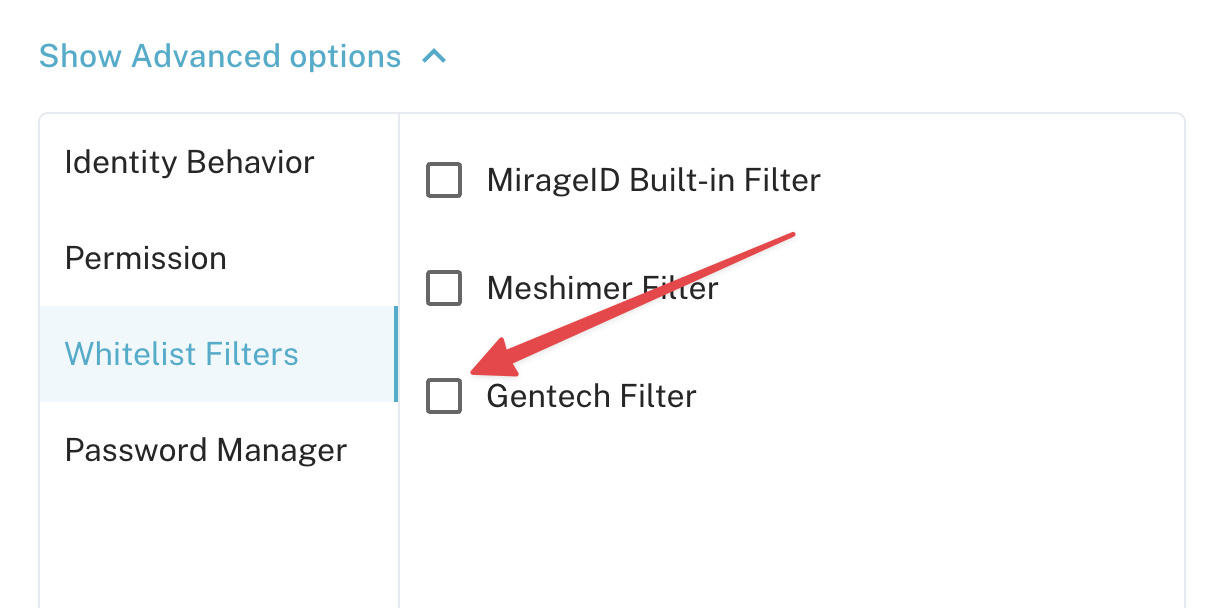
- Then Check the "Gentech Filter" box:
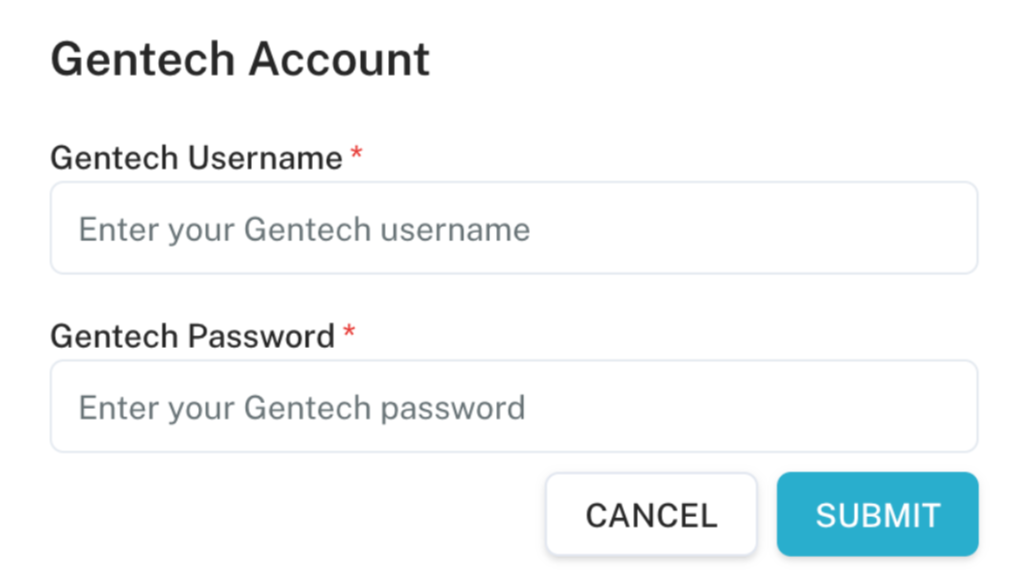
- In the prompt, enter your Gentech user name and password and click Submit:
- Click save at the bottom of the Identity card

- The Gentech Whitelist will automatically populate with a set of websites provided by Gentech
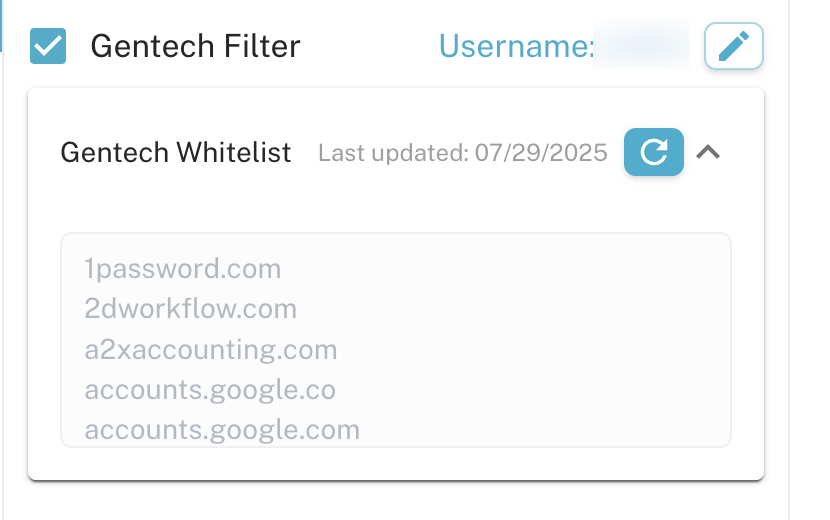
NOTE: This list is not directly editable from within MirageID. Please see below for how to add items to this whitelist.
Adding websites to the Gentech Whitelist
The Gentech whitelist is not directly editable by MirageID users. Instead, you will need to request an addition from Gentech. This can be done from within the MirageID web browser:
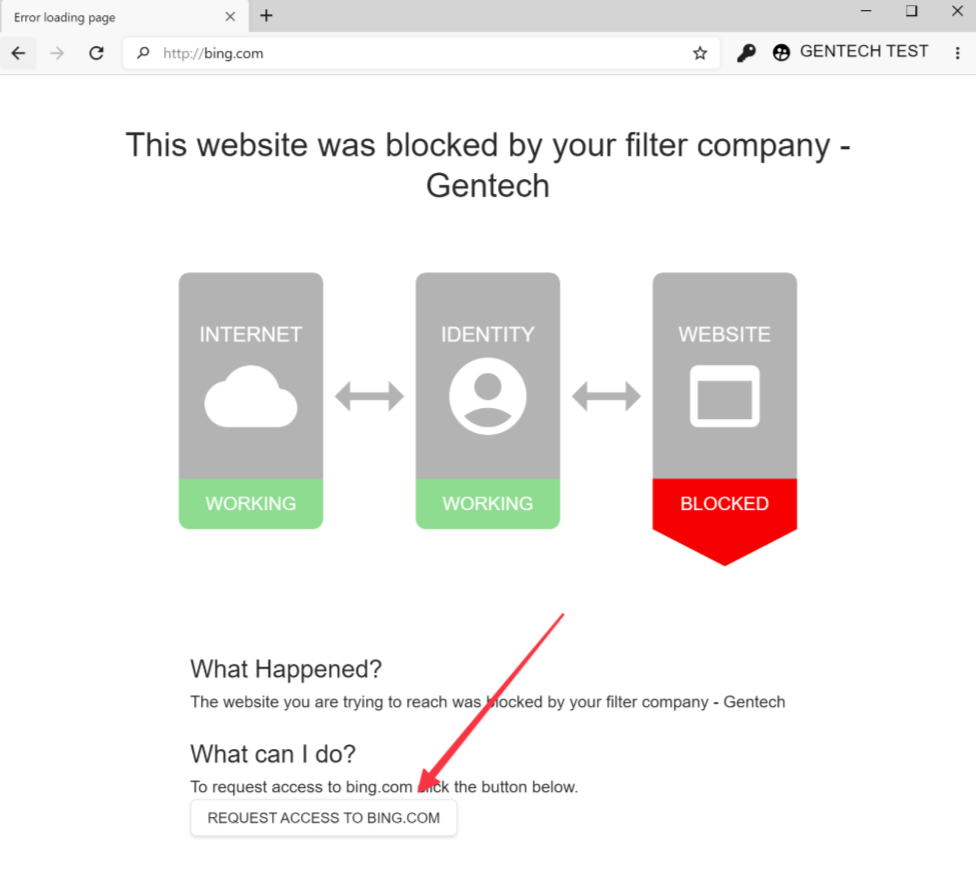
- In the MirageID web browser, navigate to a site that is blocked
- Click the "Request access..." Button at the bottom
- From here there are two paths depending on your MirageID access level:
- If you are the administrator user on the MirageID account: a request will be sent to Gentech to allow that website, and you will receive a confirmation email when the site has been allowed.
- If you are a child user on the MirageID account: An email will be sent to the administrator of your account.
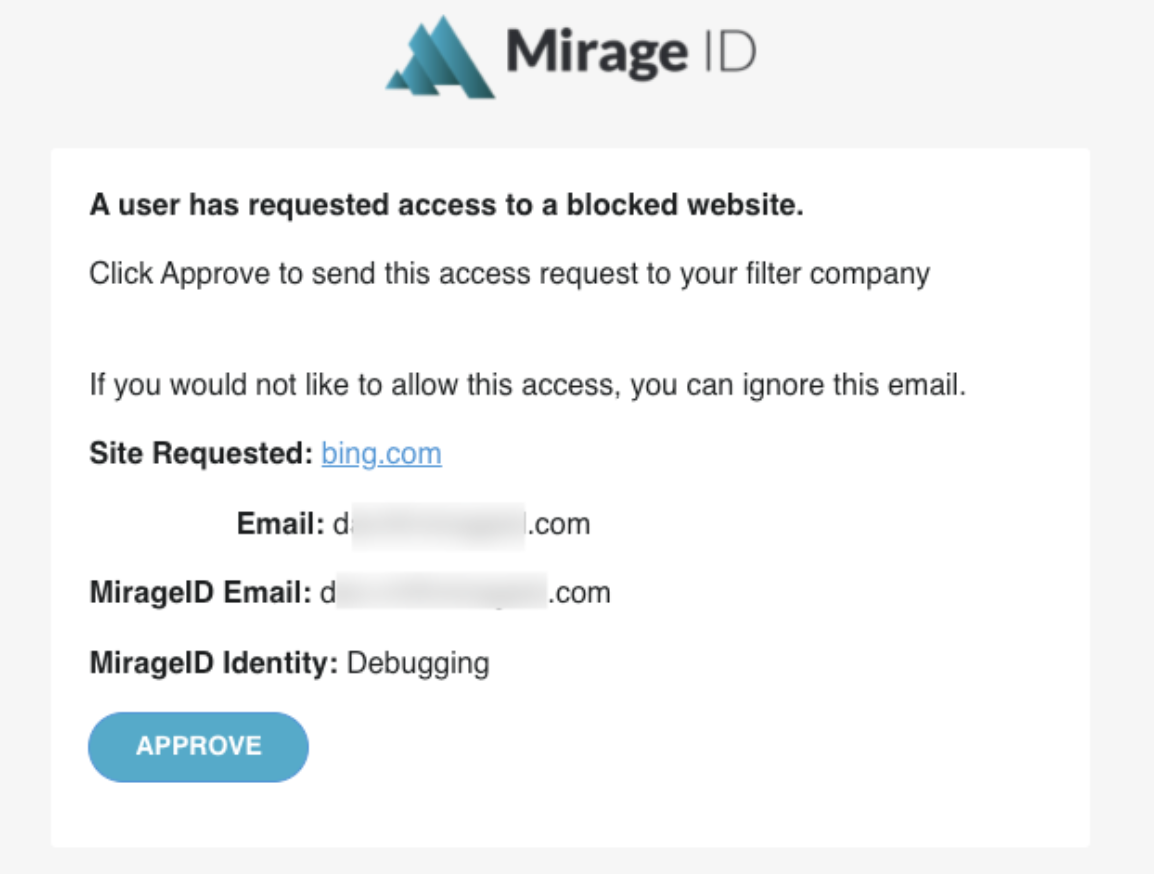
If the administrator approves this request (clicks the approve button), a request will be sent to Gentech to allow that website. You will receive a confirmation email when the site has been allowed.
How did we do?
3rd Party Filters
Whitelist Filter