Table of Contents
Manually Remove Stored Identity Data
How to remove stored identity data when you cannot open your IdentityThere may be times when you want to remove locally stored Identity data, but cannot open the Identity associated with that data. This may be due to a request from support or just to remove excess data from your computer. To do this, follow these instructions. Get the ID of the Identity you are trying to remove. To do this:In any webrowser, navigate to https://account.mirageid.com and login with your username and password.Select the Identities option in the sidebar: In your list of Identities, click on the Gear icon for the Identity in question:Look at the url bar in your browser. It will contain a string similar to: https://account.mirageid.com/identities#modal=edit&identity=-Lwef2323faaaewvThe last part of that string, after the &identity= is the ID of your Identity. In the case above: -Lwef2323faaaewv (Identity IDs always start with a hyphen)Continue below with the instructions for your computer type. From within a Finder window on your computer, type Cmd+Shift+GIn the dialog that pops up, type ~/Library/Application Support/mirage-id and hit Return:Remove the folder named with your Identity IDGo to the search bar at the bottom of the window and type %APPDATA% ( exactly as formatted including capitalization) and hit enterNavigate to the mirage-id folderRemove the folder named with your Identity ID
Table of Contents
There may be times when you want to remove locally stored Identity data, but cannot open the Identity associated with that data. This may be due to a request from support or just to remove excess data from your computer. To do this, follow these instructions.
Get your Identity ID
- Get the ID of the Identity you are trying to remove. To do this:
- In any web browser, navigate to
https://account.mirageid.comand login with your username and password. - Select the
Identitiesoption in the sidebar: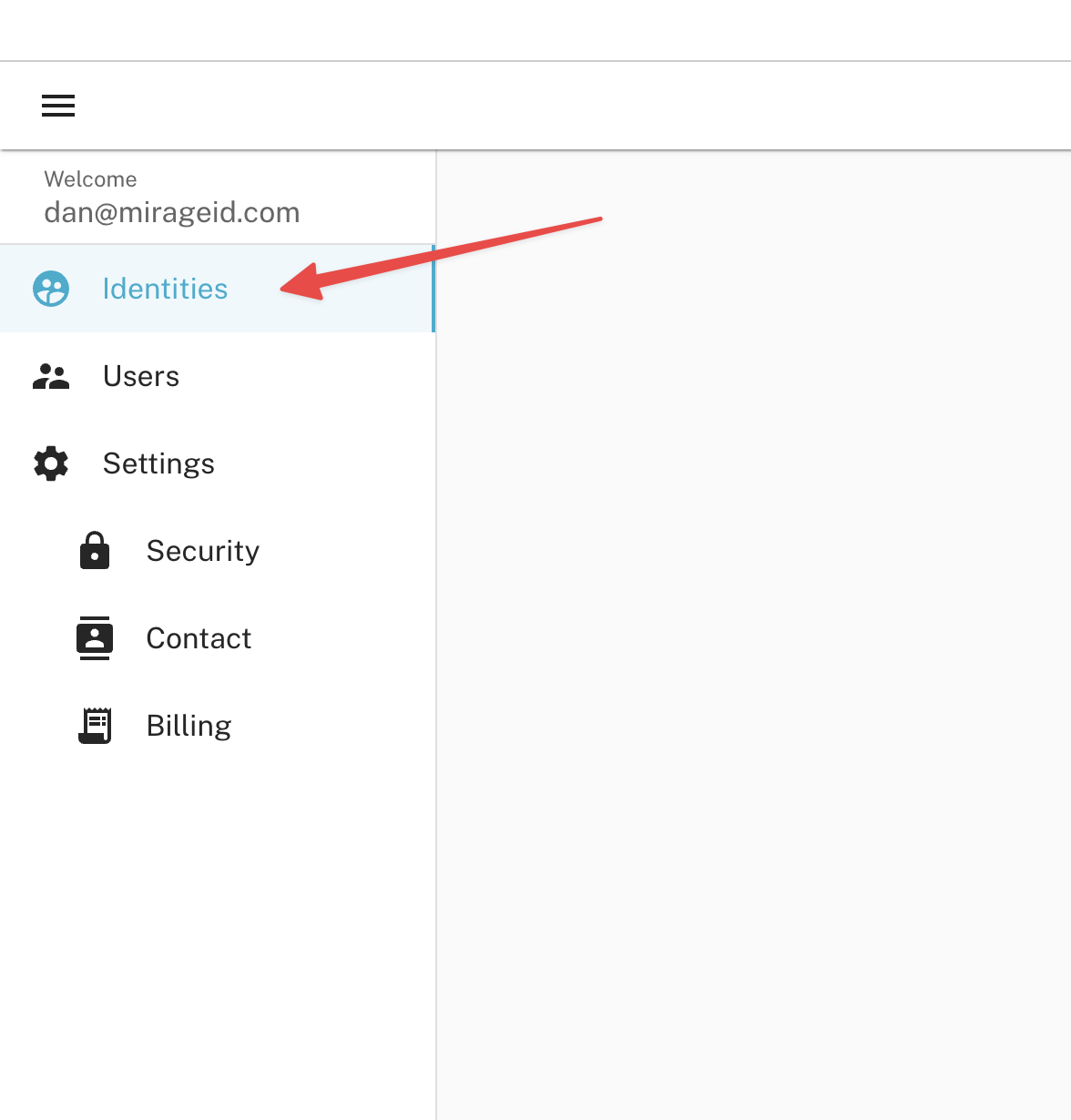
- In your list of Identities, click on the Gear icon for the Identity in question:
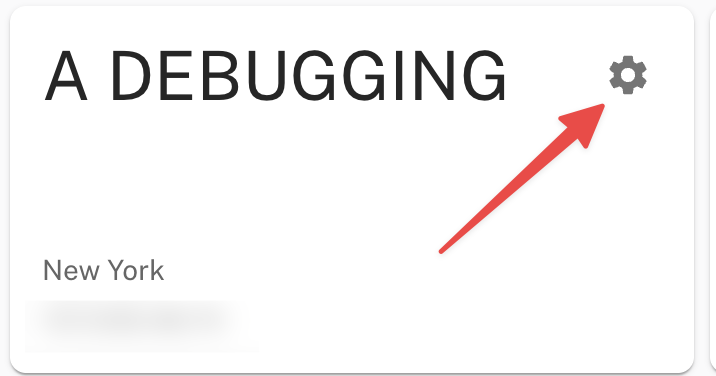
- Look at the url bar in your browser. It will contain a string similar to:
https://account.mirageid.com/identities#modal=edit&identity=-Lwef2323faaaewv - The last part of that string, after the
&identity=is the ID of your Identity. In the case above:-Lwef2323faaaewv(Identity IDs always start with a hyphen)
- In any web browser, navigate to
- Continue below with the instructions for your computer type.
Mac
- From within a Finder window on your computer, type Cmd+Shift+G
- In the dialog that pops up, type
~/Library/Application Support/mirage-idand hit Return: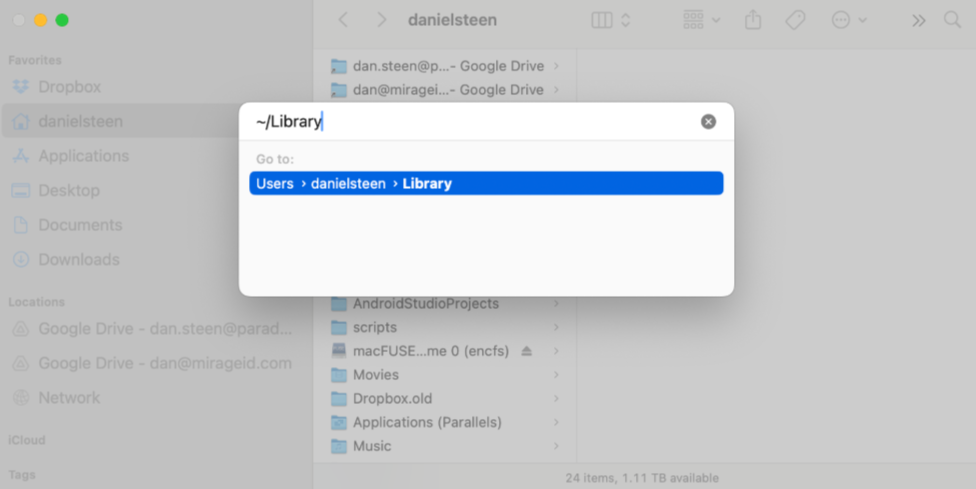
- Remove the folder named with your Identity ID
Windows
- Go to the search bar at the bottom of the window and type %APPDATA% ( exactly as formatted including capitalization) and hit enter
- Navigate to the
mirage-idfolder - Remove the folder named with your Identity ID
How did we do?
Whitelist Filter
Using the MirageID Browser with the Meshimer Web Filter